
The entire Director setup uses a single license. You do not need to upload separate licenses for each Fabric-enabled Logpoint unless you are using the Co-managed Mode because the Fabric-enabled Logpoint in this mode uses the Logpoint License rather than the Director License. A root user can upload the Director license from the Director Console. Only a root user is authorized to upload the license.
Once you upload a license, the Fabric Proxy stores it. The Director license can be either Clean or Expired based on its expiry date. The license is considered Clean if it has not reached the expiry date. When it reaches the expiry date, the license is marked as Expired.
Once your license expires, access to the Director Console is restricted. Only root users can log in to the Director Console. You must purchase a new license to use it again.
Log in as the root user in the Director Console.
The default credentials for the root user are:
username: root
password: changeme
We recommend you change the password after your first login. Go to Changing Your Password for more details.
Click License from the navigation bar. The Hardware Key at the top left is the unique key generated during the installation of Director Console. You must provide this key to the Logpoint support team to generate a license.
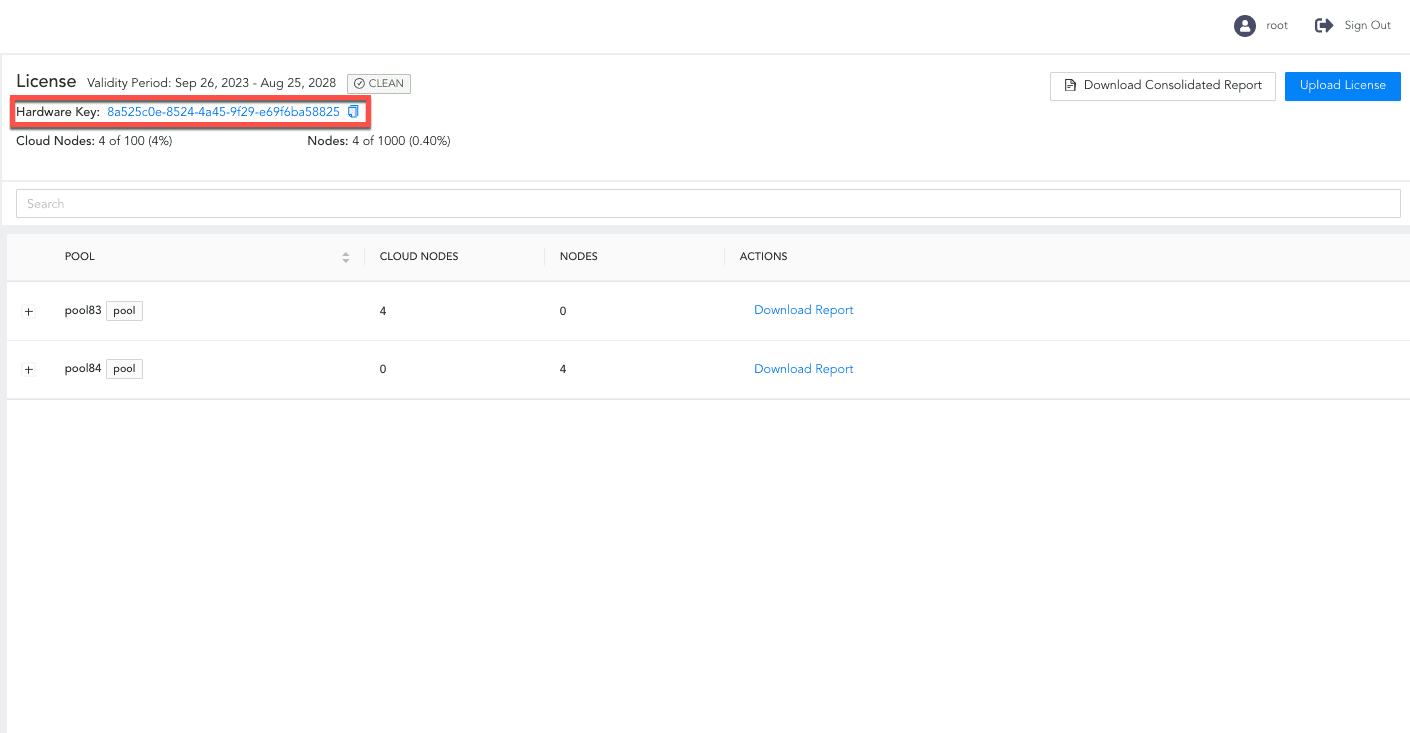
Hardware Key
Click Upload License.
Browse to the license file and confirm the End User License Agreement. You cannot upload the same license more than once.
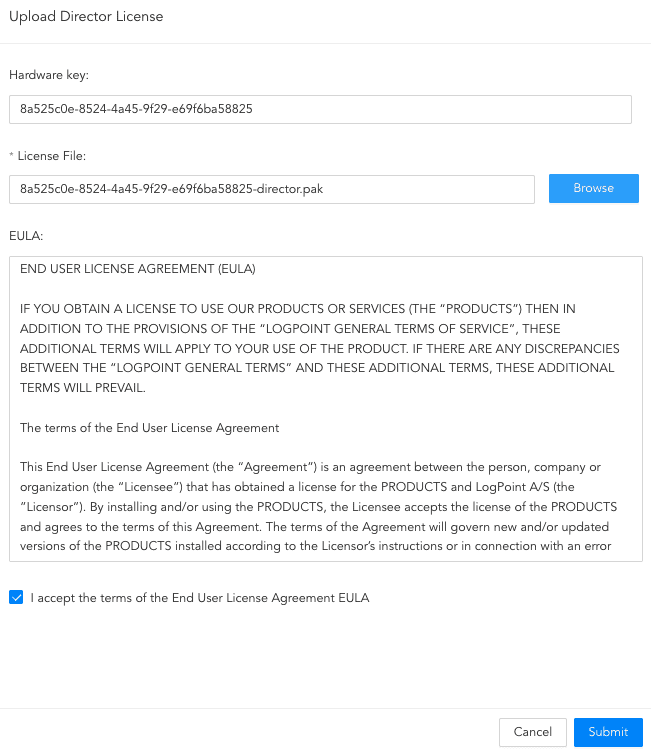
Uploading new License
After you upload the license, root and admin users can view pool details on the License page.
Your license expiry date, total number and consumption percentage of cloud nodes and nodes configured are listed at the top left.

License Information
A Node is any data source that generates logs. Based on the collector, fetcher and normalizer configured on the device or logsource, the node is considered to be a cloud node or a node.
Log sources that use the collector, fetcher or normalizer of cloud services hosted on platforms such as AWS, Azure, Google Cloud Platform, Salesforce and Cisco.
Log sources that do not use the the collector, fetcher or normalizer of any cloud services and are devices on the physical infrastructure within an organization. For example: desktops, laptops, printers, mobile phones, routers, on-prem servers, database servers, firewalls and antivirus.
Your current node count is listed under License in addition to the number of nodes and cloud nodes consumed in each pool. You can also view the node count in each Logpoint in a pool by clicking the plus ( ) icon besides the pool name.
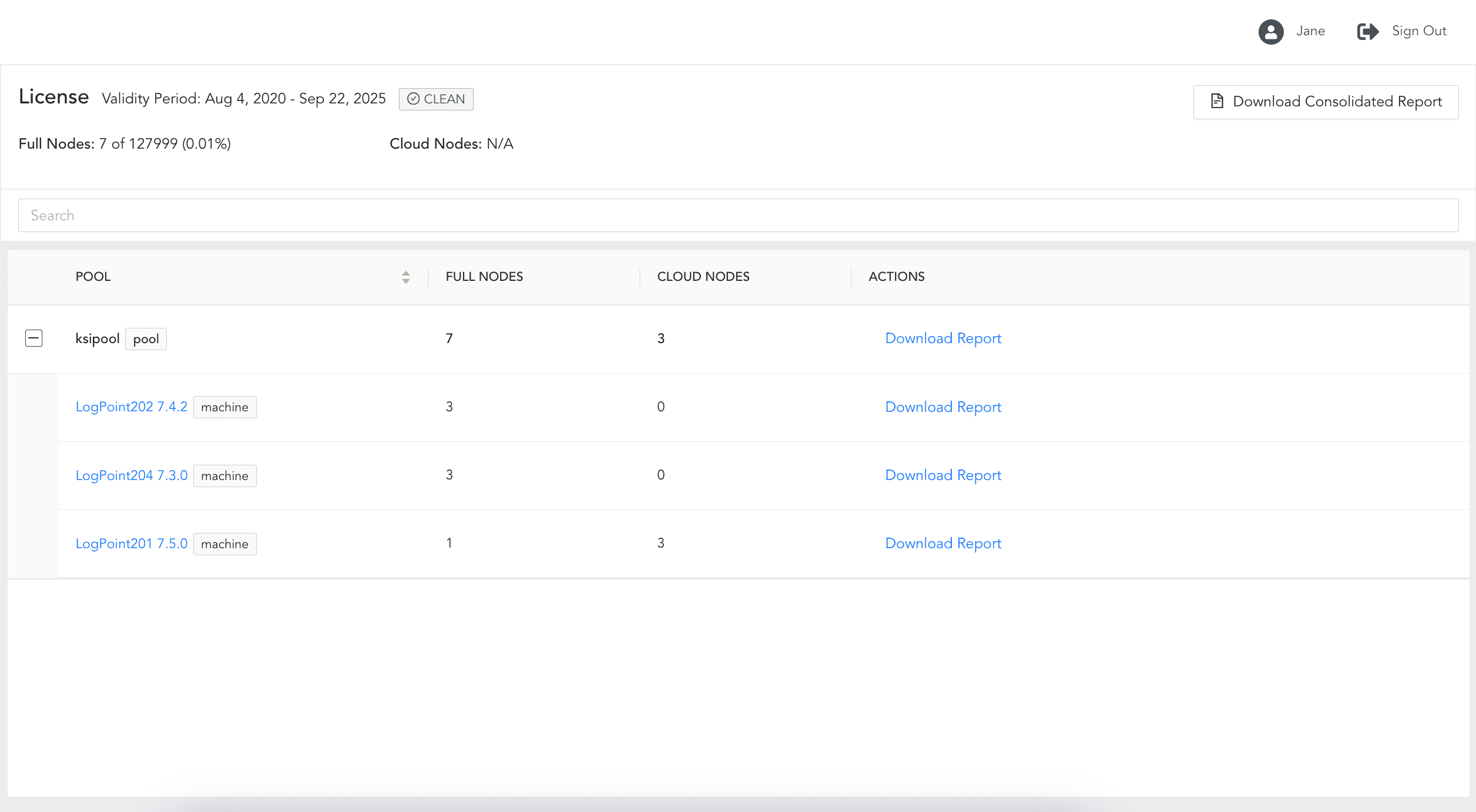
License Consumption
You can view each machine’s license details by clicking the machine name.
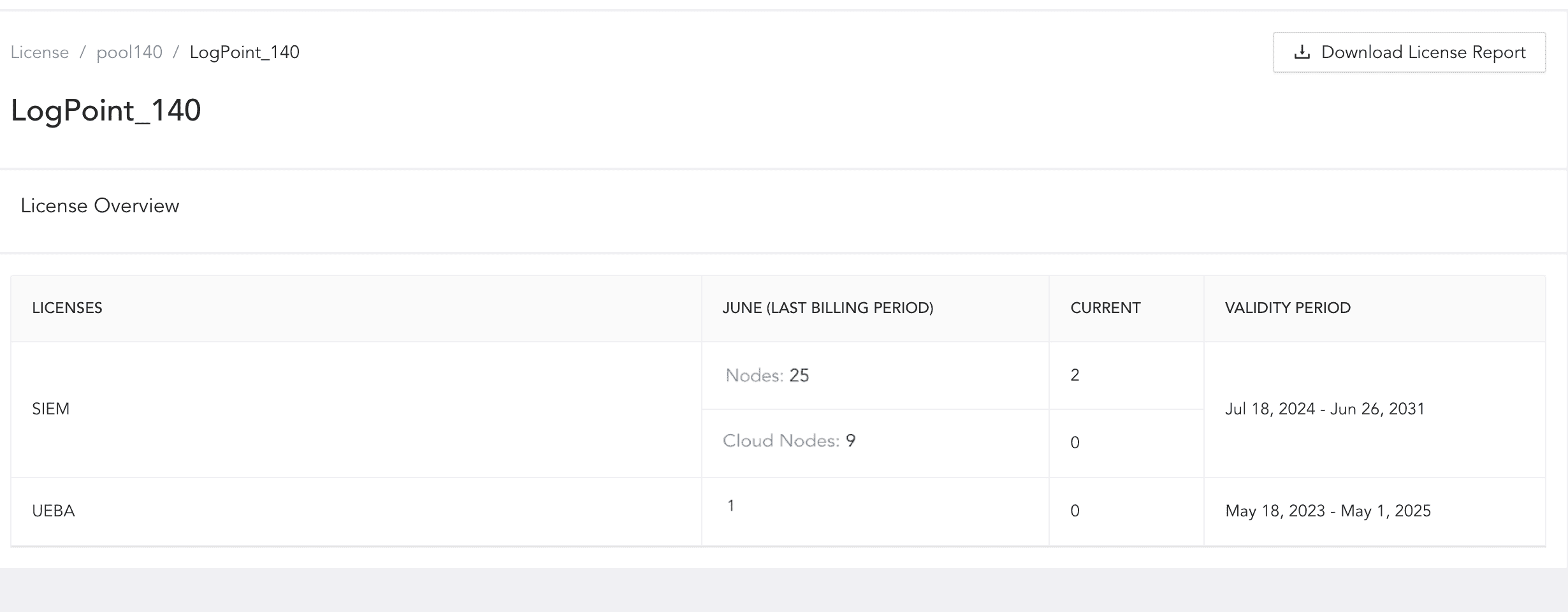
License Overview
You can generate three different Director reports about node consumption. Reports are beneficial for viewing historical consumption data, tracking usage, and managing costs.
Consolidated Report summarizes Cloud Nodes and Nodes consumed by all the Logpoint machines in all pools within the specified time range.
Pool-specific Report summarizes Cloud Nodes and Nodes consumed by all the Logpoint machines in a specific pool within the specified time range.
Machine-specific Report summarizes Cloud Nodes and Nodes consumed by a specific Logpoint machine in a specific pool within the specified time range.
To generate reports:
Click License on the navigation bar.
A consolidated report, click Download Consolidated Report.
A pool specific report, under ACTIONS click Download Report next to the pool you want the report for.
A machine-specific report, click the plus () icon next to the pool name where the machine is. Then click Download Report next to the machine name.
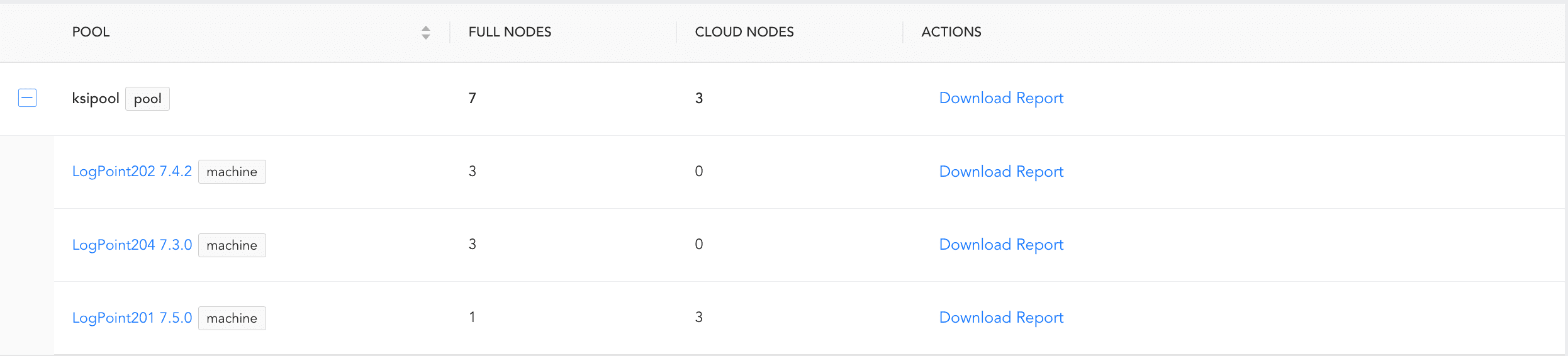
Machine List
Select time range of the Report Duration.
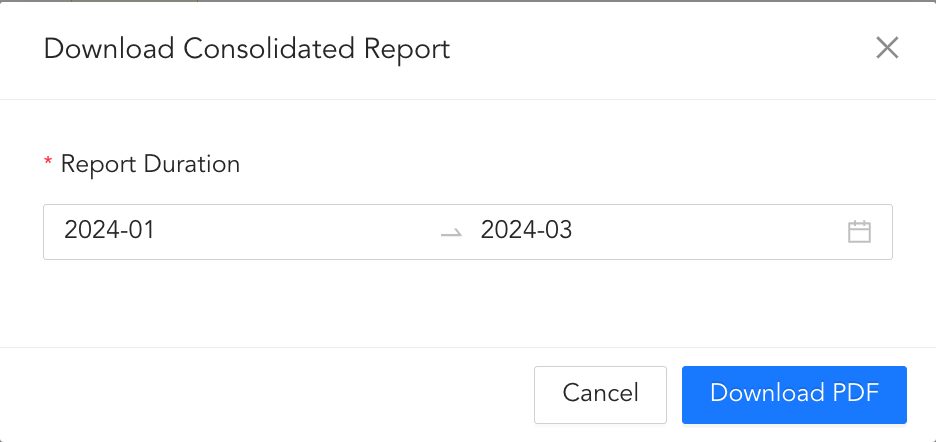
Generate License Report
Click Download PDF to download the report in PDF format.